Buying a Laptop in Zim Part 1 : Specs , Types & Price Points

It’s about time honestly…

Yep, we’re finally doing it. After 5 years of this site, we’re finally jumping into the thing about 30% of you read our work on : a personal computer. Laptops have always been a focus point of TZP, but over the years we never quite got to a point where we could create a definitive guide to buying them. Thankfully starting our TikTok series on how to choose a phone to buy helped with that, helping us build a format we can work with that everyone can understand. But enough about us, you came here to learn about which laptops to buy, how to choose a good one, and most importantly, how to buy it for a reasonable price. Whether you’re a student about to choose their work tool for the next 4 years, a gamer who wants a new mobile rig, or an employee who gets to pick something from the options your IT department gave you (is that still a thing in Zim?) we got you. So let’s dive into it.

We’re about to tell you the thing that’s going to piss off a lot of you: don’t look for brand names. While with phones you can expect what a phone offers due to it being made by Apple, Samsung, Xiaomi etc, in laptops it’s a much more unpredictable case. Specs are king. Knowing what you want to use a laptop for, what kind of specs that requires and which machine offers that will help you buy the best machine possible. After all even a $2000 M3 MacBook Pro will be outperformed in gaming by a $500 Windows machine with a graphics card from 2020. Therefore knowing what specs you need is crucial. Don’t know which specs you’re looking for and how they help? Well, allow us to help you by breaking them down below. Please note we’ll focus more on internal specs here, like the processor, RAM, storage etc. For external specs, we’ll mostly focus on screens, as we feel other aspects like build quality may be subjective(Metal does tend to be better than plastic though). Now let’s begin:
Processor

Let’s start with the most important, yet most confusing part for many buying a laptop or PC. The processor is essentially the main brain of the PC, hence why you’ll find the typical Zimbabwean repair man call it “engine” sometimes. Because your processor will be the first of 3 things that determine how fast your machine is, and of those 3 it’s the most important. The processor will literally be the difference as to whether your machine can run a cool video game or can’t even open a large Excel document. As such, you should definitely pay attention to it. But how do you know which processor to choose? Well for starters, processors for PCs are mainly made by 3 companies: Intel, AMD and nowadays, Apple , and processors are split according to speed performance and use case. But what’s the difference between an Intel Dual Core or some AMD processor with a weird R-something name? And Apple names processors M1s now? Well, allow us to explain.
Intel
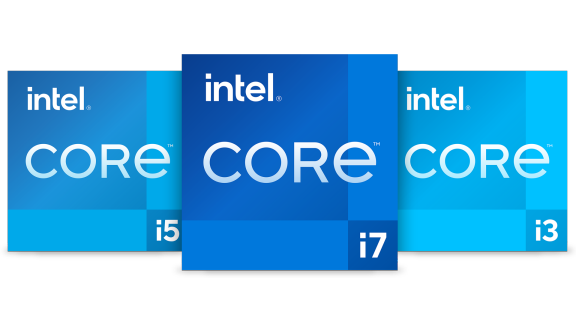
Intel offers its processors in 3 processor families: Celeron, Pentium and Core. And we’ll be honest, unless you completely can’t help it, don’t buy any computer that has the first two, and instead only buy machines with Intel Core processors, namely Core i3, i5, i7 and i9. And that’s because these processors are powerful enough to actually make it past being good in the first year or two and KEEP GOING, and that’s what matters most in a machine; that it keeps working and working well.

Core i3 processors are kind of the bare minimum of this family, but they will give you good enough performance if you just want a machine to edit and create documents on, browse the web and watch movies on. Depending on the generation though, you can likely forget about gaming.

Core i5 processors are what I would call the sweet spot of intel processors, being very powerful in their own right (while often being more powerful than an i7 processor from a year or two before, but being in relatively affordable machines. As such , all you need to check is the generation it came out in, but otherwise you can’t go wrong with an i5 , especially since these are the ones that tend to be better at power management as well, which helps with battery.

Core i7 machines however are exactly what you expect them to be: super powerful, best of the best, and until Core i9 came out recently, they were. But i9 aside these are usually the highest performance processors you get in an Intel machine. However, like every other processor we’ve covered here, generation is VERY important. And that’s because generations determine how modern or advanced a processor is.
Currently Intel is at its 14th generation of Core processors, and I would advise that anyone who wants to buy an Intel machine buy at the very least an 8th generation machine or newer? Why, because that’s the oldest generation supported officially by Windows 11. Which might not be the biggest factor considering Windows 10 is an awesome (maybe better) operating system that doesn’t seem to be getting shut down anymore( something which was supposed to happen this year). However as generations and processors and software keeps getting newer, older standards that existed before 8th gen Intel may get left behind, causing weird issues on your machine. If you’re a tech nerd that can tinker your way out of that, or prefers Linux, no problem. But if not, then please do your best to buy an 8th gen machine. For your own sake.

And here’s the easiest way to know the intel generation, just ask for the processor name or if you can, go to the This PC area in the computer, right click on the This PC icon or tight click in a blank space and click properties. Under “Processor” you should find the name, and unless you are dealing with a 14th gen machine (whose video on how to do it is below, courtesy of Linus Tech Tips). On the name that’s likely written “Intel(R) Core(TM) i5-8xxxx CPU “ , that first number, the 8 , will be the generation number, in this case being an 8th generation machine.
AMD

The value champ that’s always existed in competition to Intel machines, AMD has recently found a lot of great success with it’s Ryzen series processors, which began around 2017 and have offered great performance, and many times better power management , than Intel’s processors, and until recently they offered better graphics as well, meaning an AMD machine could play more games without a graphics card that an Intel one could. But how does one tell AMD processors apart?
Well thankfully with Ryzen AMD pretty much copied Intel with Ryzen 3, Ryzen 5 , 7 and 9. Rather than specifically use the generation number that Intel uses (which is easier), it uses the numbers 2000, 3000, 4000 up to currently Ryzen 8000, which is the current generation as of the date of writing this. And like in intel you can tell which generation it is by looking at the first number in the processor, with the Ryzen Ryzen 7645HX being a Ryzen 7000 processor. As for knowing if it’s Ryzen , 3 , 5 , or 7? Well we would suggest we you google that. Which yes, sucks, but it would be the fastest way for you to know what you’re dealing with, especially against a corresponding intel machine. Or you can click this link to Wikipedia that also helps.
Apple M-Series
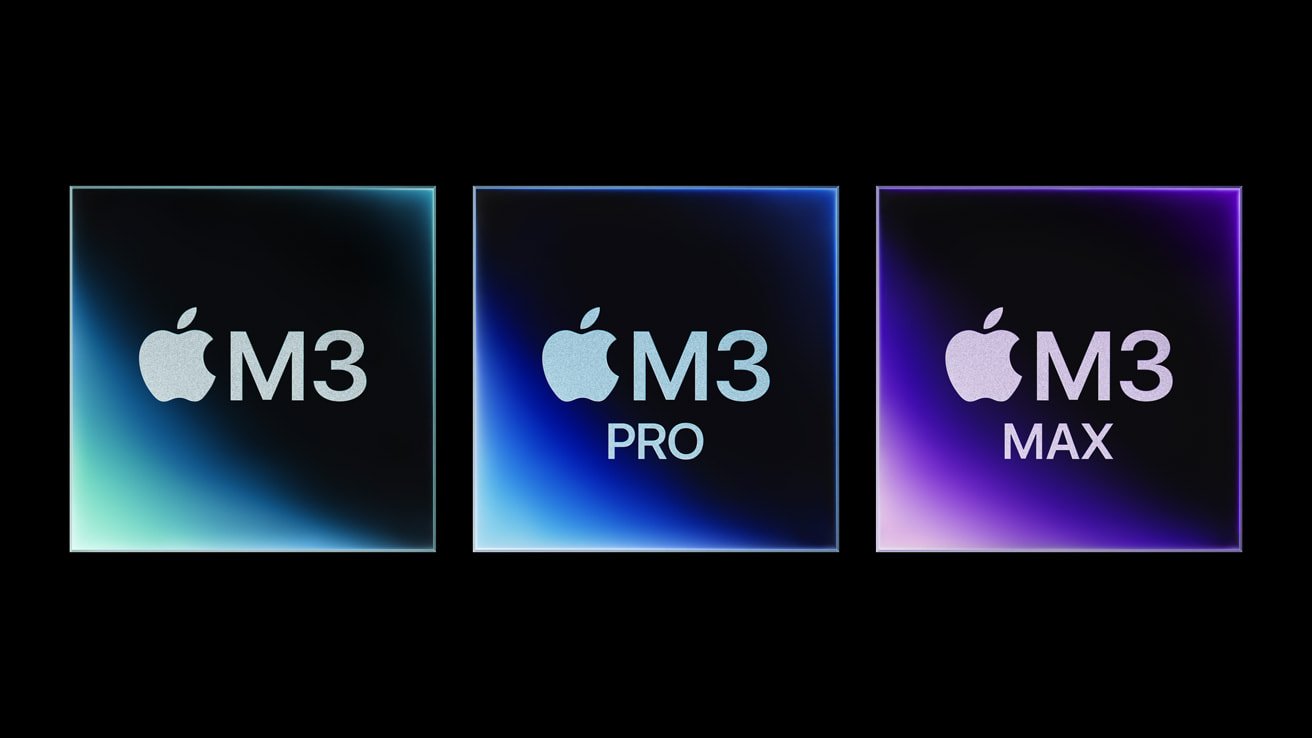
Now that earlier joke aside, Apple really does make processors called M1s, and M2s and M3s. And weird (but simpler) names aside, these processors have genuinely changed the face of computing as we know it, as Apple has essentially turned what are upscaled iPhone processors into some of the most impressive processors on the planet. The M-series processors are renowned for having great performance but even greater power to performance ratio, which means despite being as fast (sometimes faster) than competing Core i5/i7 ,machines, they use MUCH LESS battery power, which has led to MacBooks actually being the computer you can leave home without the charger and work an 8-hour day without having to plug in, especially if your workflows aren’t anything too heavy, and even then they can run heavy workloads like video editing for up to 4 hours with machines like the M1 Max 14 inch MacBook Pro.
/cdn.vox-cdn.com/uploads/chorus_asset/file/24709025/Apple_WWDC23_Mac_Family_Apple_Silicon_230605.jpg)
Considering that M2 and M3 have their own Pro, Max and even Ultra Models, you see why Apple is kind of feeling good when it comes to its laptops right now. The downside? Well graphics. Apple’s internal graphics have gotten more impressive in the past few years, which is why the iPhone can run consol games now, but as you may not know, consoles are usually 2-3 years behind PCs in that area, and that means every graphics card from NVIDIA , AMD , even Intel can run laps around what the M series machines. So while editing a video in Final Cut is great on a Mac, you may find 3D rendering , crazier video renders and color grading, and of course gaming, remain better on Windows machines. There’s also power limits that M-series machines have that Intel and AMD ones just….don’t, which make those 2 more powerful in certain situations, but it’s also why they are less power efficient so, it’s a trade. And of course, which machine you choose is dependent on you, while the M1 MacBook Air is still a pretty good deal, especially as it drops to $700 or less , it’s a better processor for an inferior machine, especially in it’s flagship laptop class. Otherwise I would say and M1 Pro MacBook Pro 14 is still a value champ, or even an M1 Max if you can afford it. The M2 MacBook Air is the standard all MacBook airs should be held too, especially the 13th inch one , while the M2 or M3 variants of Pro and Max machines will definitely be based on what kind of laptop you need, which we’ll dive into below.
RAM

This should be the easiest point to understand in the specs part of this article. RAM is random access memory, which you’ll often hear referred to as just “memory” by manufacturers. It’s essentially a machine’s short-term memory, aka how many tasks they can do at once. While 4GB is still a minimum for a lot of cheaper machines, nowadays I would say 8GB is the best default. Get yourself an 8GB RAM machine and chances are you can watch most things, run most things , and maybe even play a few games based on the processor you have. Another factor to consider is whether that RAM is upgradeable i.e. you can get someone to add more RAM later or add it yourself. This will be based on RAM slots in your machine. If it has one, you can only replace the current RAM chip to add a more powerful one, e.g. swap out an 8GB chip for a 16GB chip, which can be more expensive. If it has 2 slots however, you can actually find cheaper ways to get updates , e.g. add another 8GB chip in the second slot so your machine become 16GB , which can be a lot cheaper. It should also be at this point that I note that all M-series Mc machines cannot have their RAM upgraded (a trait that annoyingly, some Windows PCs are starting to copy), so always try to buy a higher RAM machine if you can (which is VERY expensive trust me). And if you want an Intel Processor mac from before 2020, well, it might be better you just buy a windows machine friend.
Storage : Hard Drives and SSDs
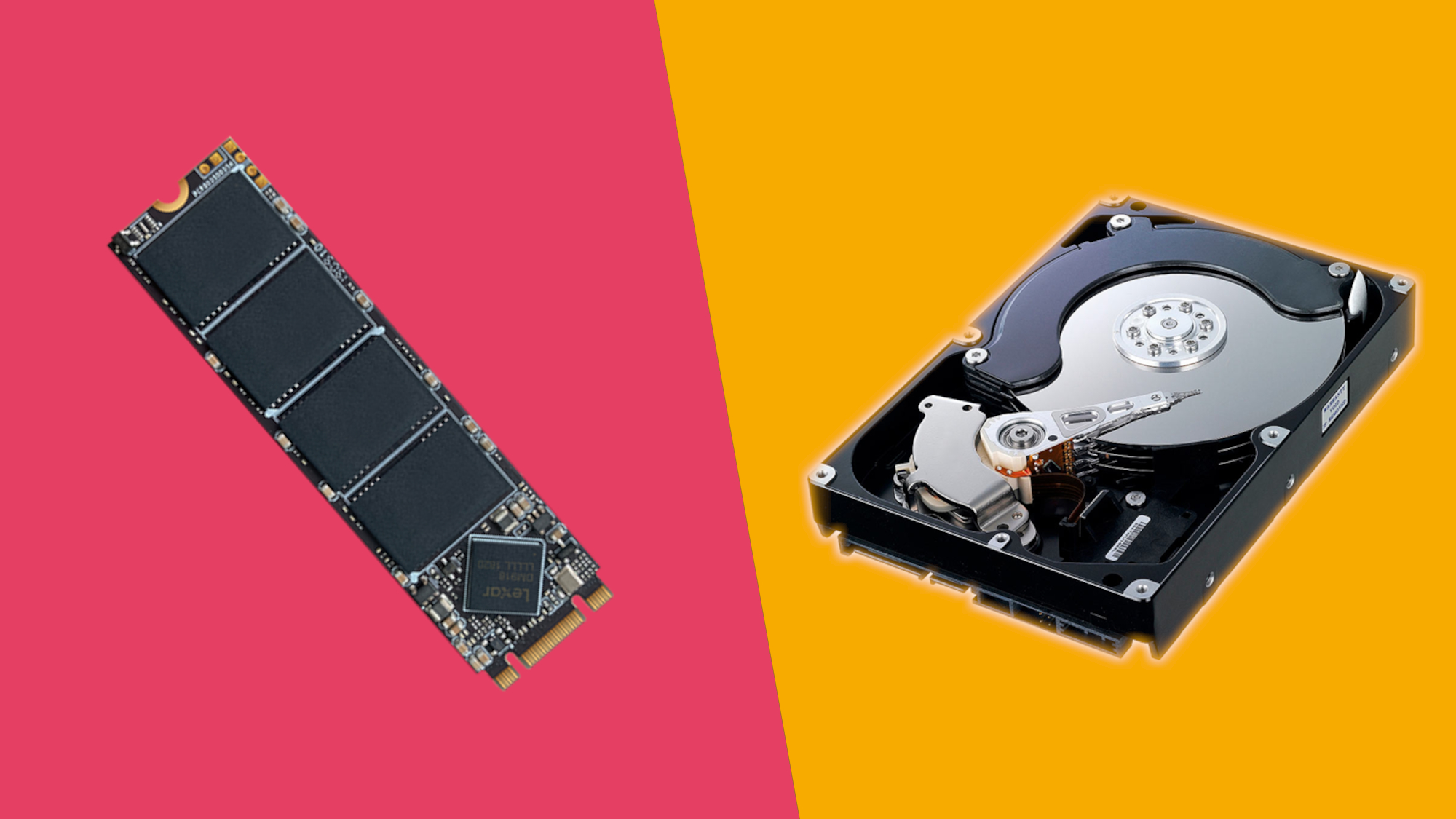
When it comes to storage, the average person is going to look at one major thing: How much of it is there. A lot of us understand what 1GB means now so we know that 512GB is bigger than 256GB. But the type of storage drive is arguably more important. Most of the type you’ll see laptops labeled with 256GB /512GB HDD or SSD. HDD means hard drive, which is the storage computers have used for days and most of us are familiar with. It’s cheaper, hence why you find even machines at $300 with a 1TB HDD, but unfortunately it gets much, much slower over time. Especially as the drive fills up. That’s where the whole “clear space to make your machine faster” philosophy comes from. SSDs however, don’t suffer from these issues. They are much smaller, faster drives (at minimum about 8 times faster) and make even a slow machine feel remarkably faster. You won’t find them in very cheap machines at larger quantities, and even $1000 machines can start with only 256GB, but you can find a good compromise between size and speed if you look around. In Windows PCs there’ll also often be upgradeable, meaning you’ll be able to upgrade to a bigger drive with time. And again, M1 and upward Macs don’t offer this either.
There is also EMMC memory, which is essentially the same kind of storage that an SD card uses but will be on a PC’s motherboard, it’s usually in those super small PCs with low storage (e.g. 64GB, 128GB). It essentially operates a lot like a SD card hence has a lot of the same flaws e.g. copying certain file formats can be a nightmare, so avoid it if you can.
Screens
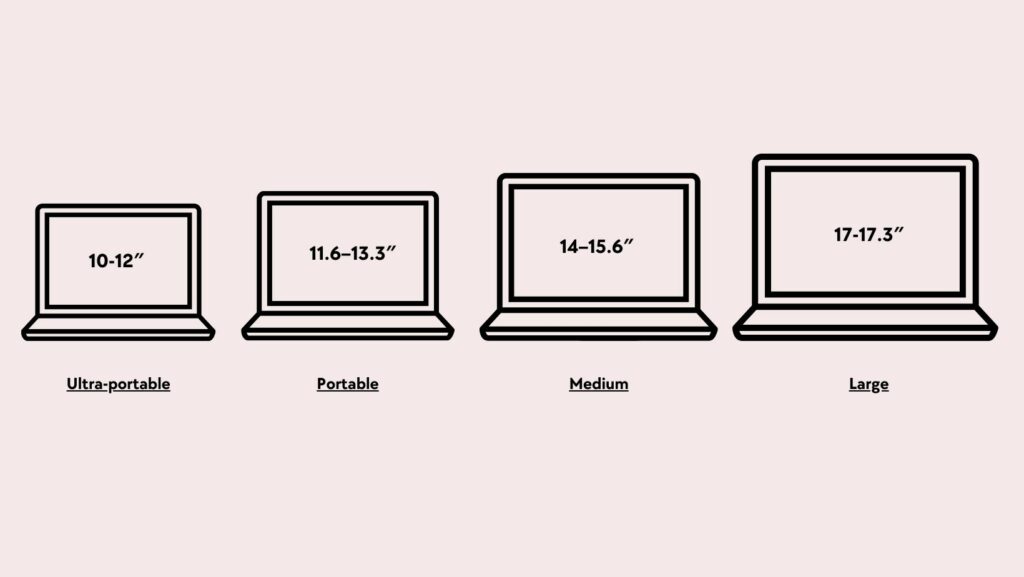
Now Honestly, we feel most people who care about screens are the type of people who can afford fancy ones i.e. choose between an OLED or micro LED panel. But we will highlight this: in 2024 never go below a 1080p screen, or at least one that supports it. It’s rare to find a 720p screen on a laptop but it is possible. As for screen size, well that depends on how big you want your PC to be. 13 and 14 inch models are loved for being portable but adequate, 15 & 16 inch screens are for people who basically work on their machine all the time and need as much real estate as possible, and 17 inches and above are well, for gamers and crazy people, but we’re not here to judge.
Graphics Cards/ GPUs
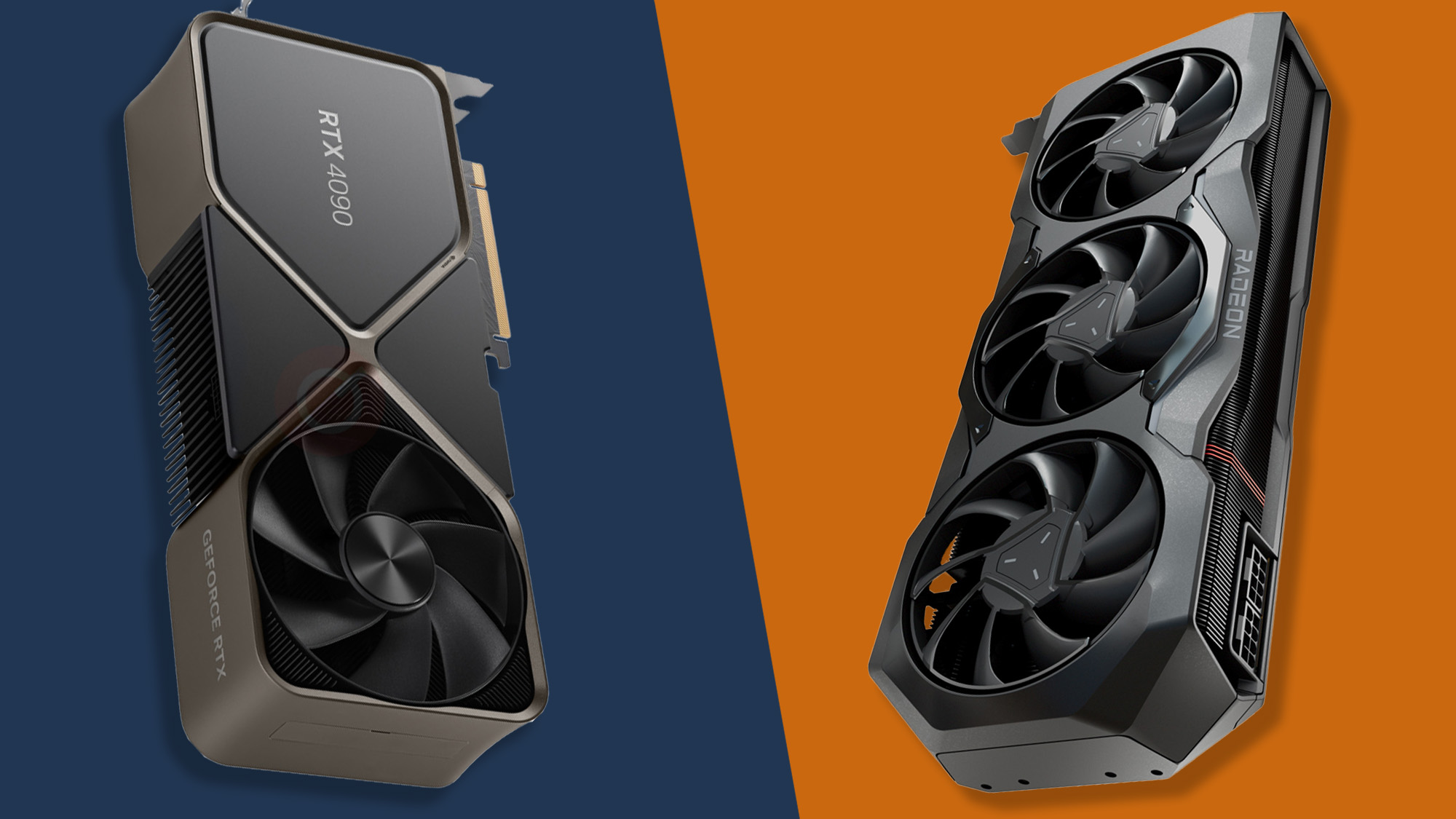
Also known as discreet graphics, GPUs are something more sought after by gamers ,video editors and anyone into graphical/ 3D rendering work. And that’s because that’s their whole job: work that specifically focused on graphical workloads , and more recently, AI based workloads as well.
The main GPU suppliers are AMD and NVIDIA, with NVIDIA essentially being the king of the most powerful, expensive and sought after GPUs, while AMD maintains the healthy second place that it does in processors as well. We won’t go into the specifics of all their cards here but if you’re looking for a gaming machine on a budget, I would say anything with NVIDIA’s 16 series cards should be your minimum, which are the GTX 1650 and above. If you can get better, namely the RTX 20, 30, or 40 series (RTX 2080, 3060, 4070 for example) well then you’ve got a bit of money to burn, so get the best one you can. For AMD if you have a Radeon RX470 card and up you should be fine too.

Apple and Intel have also entered into the graphics market but in separate, specialized approaches so as to not lose against the big 2. For Apple it’s focused on the graphics in the M series processors being great at specialized workloads like video encoding in specific popular formats, and focusing on power efficiency. That aside though if you have a big powerful NVIDIA rig, you’re probably better off. Intel has focused on being an even more budget friendly option than AMD , making its cards great for playing a lot of new, popular games, but falling off a bit when it comes to compatibility with older games. The biggest advantage they have given however is that the average 12th to 14 gen core i5 laptop can probably play games like overwatch, FIFA ,COD Warzone and more at medium settings but with no issues whatsoever, so that is an upgrade.
For anyone who isn’t into gaming, AI or the other workloads we mentioned, you likely should not care much about this, but if you do , now you know where to start

As we said, all laptops aren’t all the same, and differ based on price and intended use case. This means like with phones, expensive doesn’t always mean better, or better for you. More so here where a thousand dollar machine can be worse than a $600 one for certain tasks. So we’re going to start by breaking them down into their price points and uses cases, as well as put some focus on a very important aspect in Zimbabwe : the second hand market.
Entry level machines – $200-400
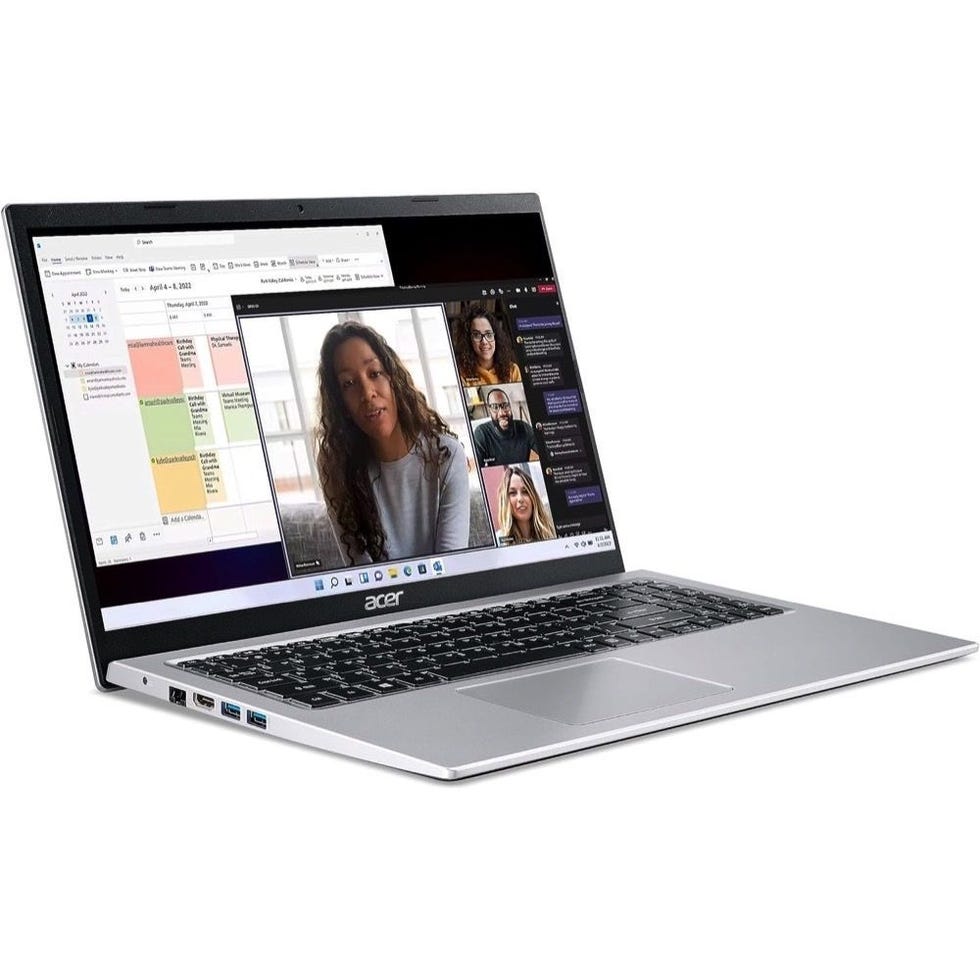
Now these are your completely entry level machines, often running Windows or Chrome OS. We’ll go into operating systems in the next part, but for now what you need to know that Windows and Chrome OS are what you’ll get brand new for any machine under $1000. And these machines are as basic as you can get. You’ll likely find them with 4GB of RAM new, maybe 8GB for the $300/400 models, they can even have pretty reasonable storage, with 512GB or up to 1TB in storage. The problems start here however – they’ll be slow because of 2 main things, the storage or processor. If you’re lucky these machines maybe come with an Intel core i3. But more likely they’ll come with a weak Celeron or Pentium processor, aka some of the slowest processors in the whole world. That large storage space will also likely be a Hard Drive (HDD) and those are known to be VERY slow, especially over time as the PC fills up with more stuff. As such, these machines are best (brand new) for office clerk work, or very basic educational work (aka word documents, very small excel docs, light internet browsing and video streaming) , especially on the Windows side. Chrome OS machines being very Web-based are a little more resistant to these weaknesses, but not much better either due to the limits of the OS.
If you want any other use cases though : gaming, coding, video or photo editing etc., these aren’t the machines for you. They also age poorly unless you literally do the most basic of tasks and never fill up the hard drive. So if you’re a college student looking for a machine for 4 years, maybe try move a little higher up the price range. And before you get angry because these laptops go up to $400, they tend to cost even half the price when second hand and depending on age. So for example some older Pentium/Celeron machines can be the ones you find in the “less that $200” range that you find so many Zimbabwean sellers advertising. If these machines are older than an 8th Generation Intel machine though, probably might be best to not choose it, as it might not even play well with some Windows 10 updates, let alone Windows 11. And we get why everyone buys these machines, they’re cheap, but for their prices the machines in our next price can be found second hand, and are FAR BETTER choices.
Mid-range machines $450 – $800
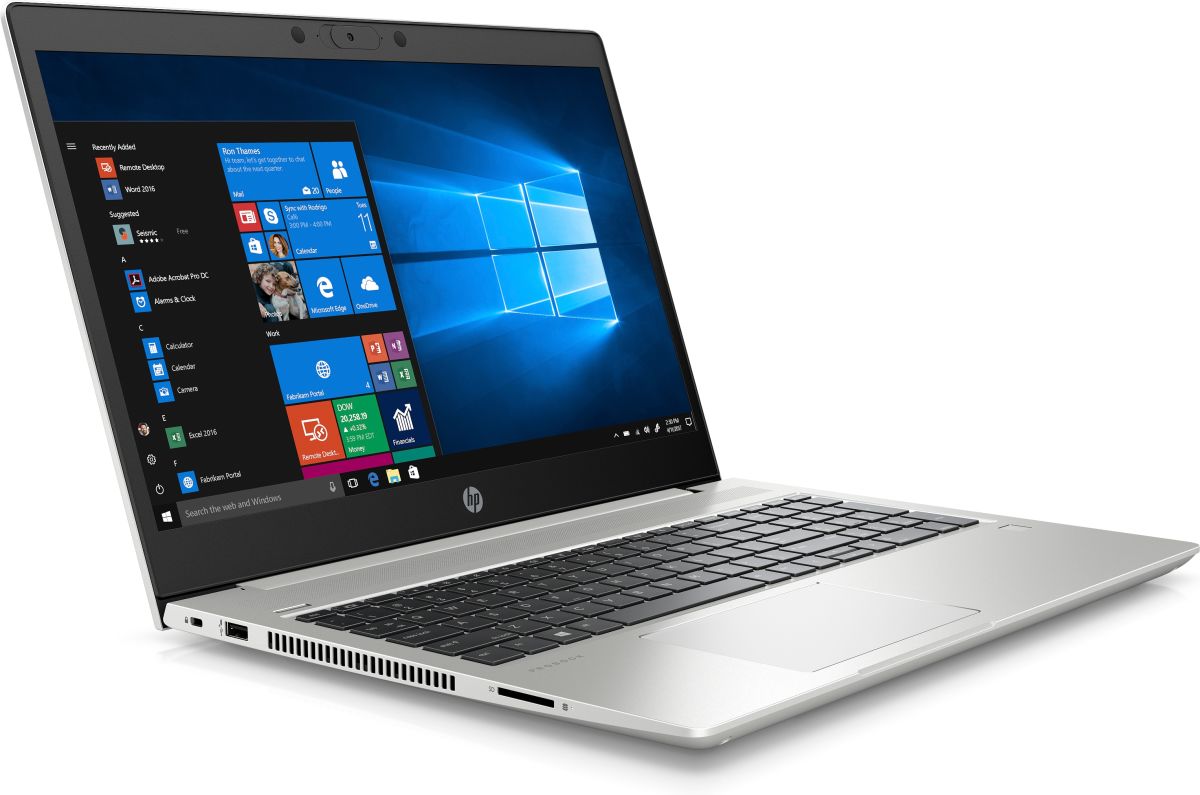
I’ll go on a limb and say right from the start, this is the range that most people probably should buy a laptop from, even if it’s second hand (AKA how a lot of Zimbos buy it). And that’s because in mid-range PCs is where you find the best balance between good internal specs, one or 2 flagships specs e.g. A great screen, touch or 2-in-1 ability, and even things like entry level gaming machines in this range. Price wise they also may release at expensive prices by Zim standards, but once they are over a year or so old or hit the second hand market, these are the machines you’ll be buying for around $250 to around $500. So everything from a boring but fast and reliable machine is found here, to a sort of “flagship killer” machine like my own 2019 Lenovo IdeaPad Flex 14, which despite selling at around $730, performed the same and in some actually beat the 2019 MacBook air or the Surface Laptop 3. The base spec for RAM in this range should definitely be 8GB, though these kinds of machines usually allow RAM upgrades as well if you need more power. Storage should honestly be minimum 1TB if it’s an HDD, though SSDs will be either 256GB or 512GB. As for processors, core i3s will be relevant at $400, to maybe $500, but at $550 and above you should really think of getting an i5 instead.

And as these prices go up to $800, a lot of core i7 chips (and equivalent such as the AMD Ryzen 7 Processors) are available too, whether the current generation or a generation behind. It should also be noted that at this price point one should genuinely pay attention to AMD Ryzen 5 and 7 processors, as they can offer more power or gaming performance for the same price. Intel’s 13th and 14th gen processors have been starting to change this with the Irish Xe graphics but AMD has a reputation for being value kings for a reason. Another aspect to consider here is discreet graphics cards/ GPUs. As we said entry level gaming/ video editing/ rendering machines can be found in this range so if you’re a college student looking for a schooling and gaming machine, this is probably where to look.

Same goes for anyone starting a photo studio or video editing. The only downside to these machines? Well depending on configuration (and buying them new), it might sometimes be better to buy what we call a flagship machine e.g. the Surface Pro/ Laptop , MacBook Air or DELL XPS series. Because say you bought a $750 machine that’s pretty great but came with lower storage, or RAM, you’ll likely end up paying $100 or more to upgrade those specs, and maybe close to the price of a flagship machine, and depending on the machine it might have been better to buy the flagship machine. Especially since those machines can come with better screens, extra perks or some harder to quantify quality of life features.
Flagships : $1000 – 2000

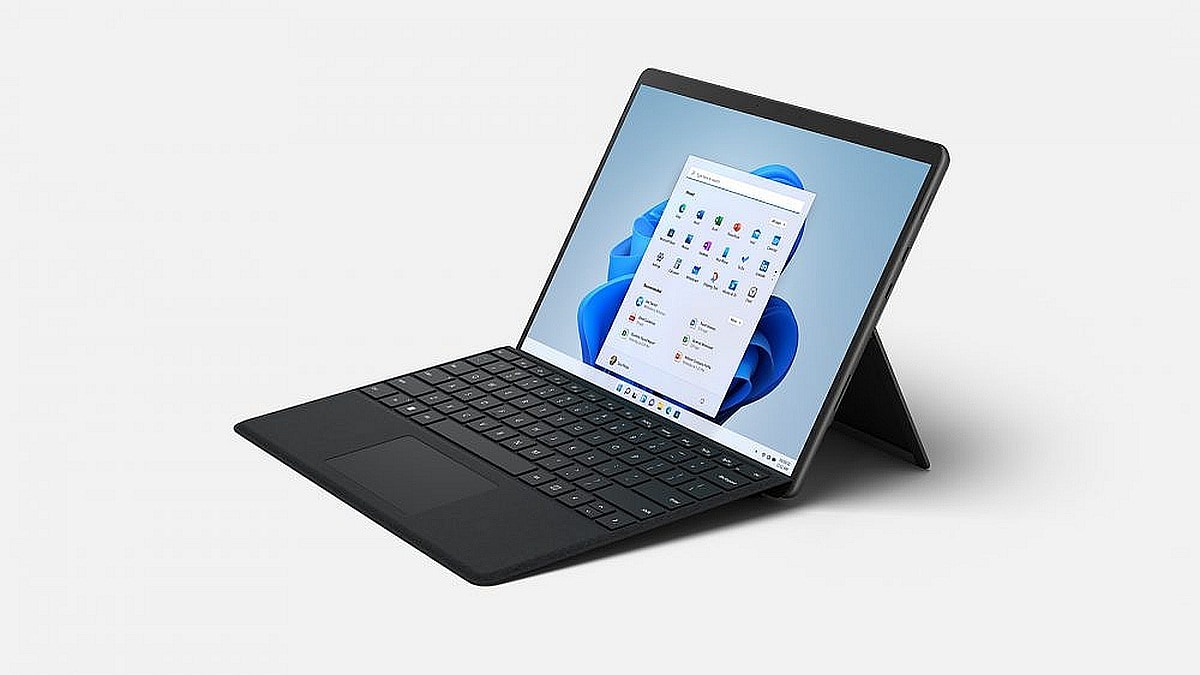
The MacBook Air. The Surface Pro. Dell XPS 13 . HP Spectre. If you like laptops at all or just find them interesting, you’ve likely heard at least one of these names. And that’s by design, while most companies release laptops in so many variations and models it can be hard to keep count, these are the machines they use to essentially represent their brand to the world out there.
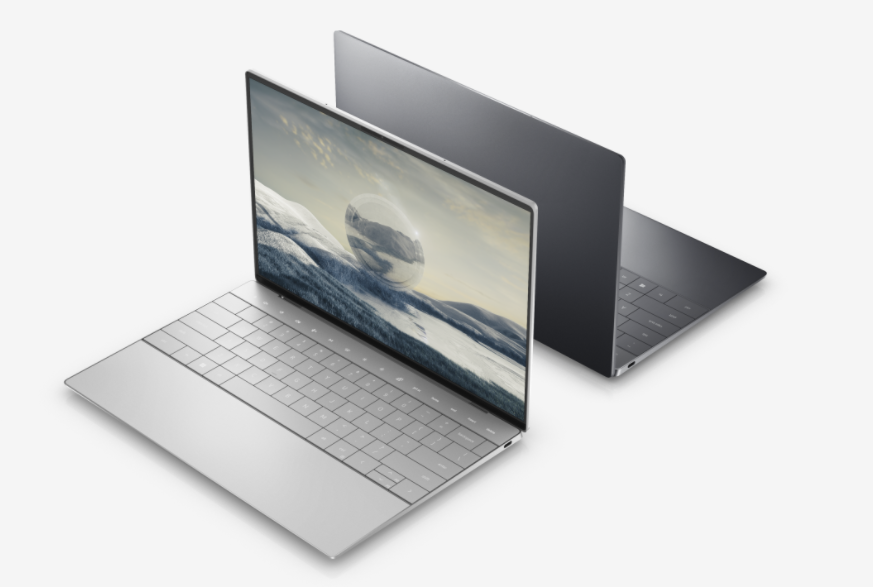
Their usually very well built, polished, powerful (but sometimes not powerful enough) and chances are they fit most regular users more than fine. Most of these will be thin and light or office-focused machines, though you do find some gaming and pro machines in this price bracket too, even if those aren’t the most powerful versions of those machines. That’s partially why they fit most people : they’re essentially the mid-range machine but with no corners cut. Great screens, build quality, some quality of life perks, just the right amount of power, sometimes the best battery (especially from Apple) and a good focus on getting enough right that you don’t focus on what’s been done wrong (usually ports, especially on the thin and lights).
While you will still find some 256GB SSD specs here, it’s obvious you should go for the 512GB models that are usually $1200 or there-about , unless you’re buying a MacBook Air where $1200 is actually the starting config with 256GB. RAM is also another issue though here , because while most people might probably be fine with the 8GB these machines start with, 16GB would be best for anyone who wants to try some photo and video editing with their machines, let alone some light gaming, especially with modern Intel and AMD processors that can actually play around 85% of most modern games , even if it’s on low or medium settings. And that’s without counting the actual gaming machines in this range as well.
ASUS’ ROG Zephyrus G14 had basically made this price range its home before deciding to go just out of it at $2200 this year. The 2023 and 2022 models are still great though, and can be easily found in this price range. If you don’t want what ASUS is cooking however, the Razer Blade Stealth actually plays at the top of this range, offering great power, build quality , screens and even ports at just $2000 , though it often comes down to $1600 in sales. The other top of the range competitor is the other Apple machine that makes people blush, the 14 inch MacBook Pro.

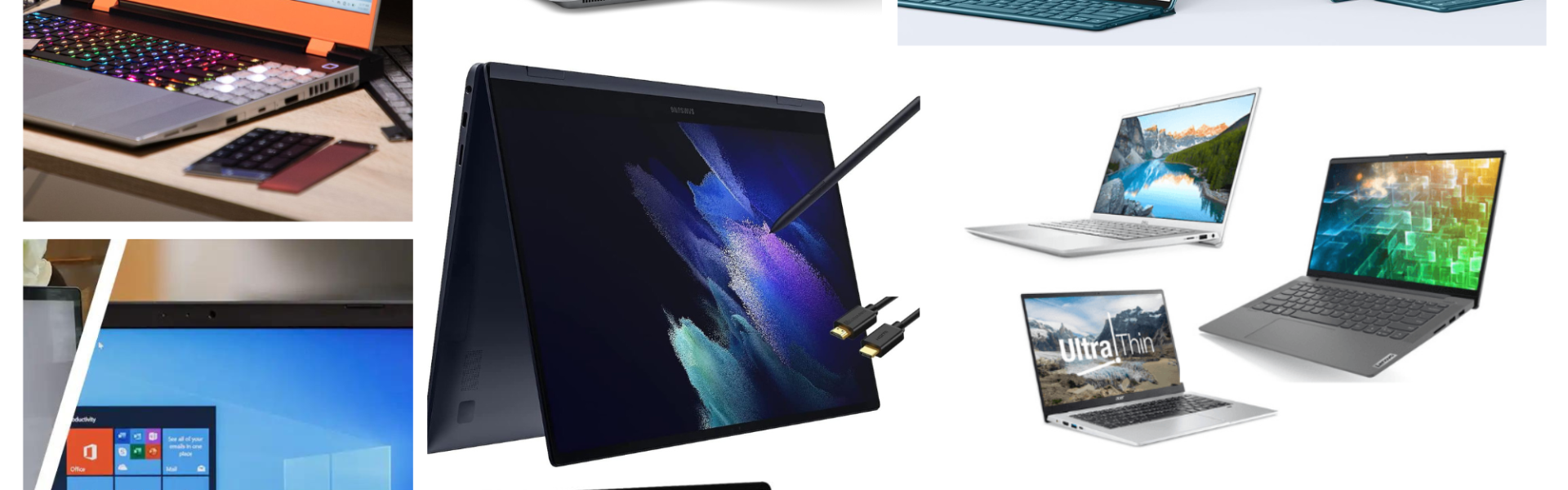
The current M3 offering comes in the basic M3 and M3 Pro variants , and I would advise you go for the M3 Pro model (because otherwise you should just get the MacBook Air instead), but it’s also at the top of the range at $2000. Getting an M2 Pro, or even M1 Pro/Max . Those are good for enough for MKBHD so why not you. And the best thing about this price range is that choice is still a larger factor here, We’ve talked thin and lights , MacBooks, gaming machines but the Surface Pro still deserves credit for keeping up with the best while being the only full tablet. Dell’s XPS 13 used to be a standard bearer until it just became worse and worse so now I tend to lean on Lenovo’s Yoga 9i series. It’s the perfect mix of reasonable power , a 2-in-1 design (yes it turns into a tablet 2) , ports, a pretty good screen and even some accessories (comes with the pen and everything). Samsung’s Galaxy Book and Book 360 offerings have also become amazing offerings with great screens and good value. Add in LG’s Gram series and you have yourself a whole litany of offerings. And we haven’t even talked about the underrated Surface Laptop yet!

Correction, this price range kind of has everything, which is why it’s great for almost everyone if price isn’t an object. Unfortunately it tends to continue to be one, as most flagships don’t drop that fast. Still after 2 years or so you might find them selling for around $600 in Zim, and I’d say that’s not too bad of a deal. But if these machines still aren’t enough for you, well, hold on to your pockets because this next segment will rock you socks off.
Professional/ Specialist/ Enthusiast machines : $200+

Then there’s the machines where if you have to ask about pricing, you might not be “pro enough” yet. Because once we get past $2000s it becomes a little less about what you need in a machine and a lot more about what you want instead. A lot of these machines will be better specced flagship Pro machines, like the MacBook Pro 16, Dell XPS 16 (formerly 15) and so on. But then you have machines that go even beyond those beasts, be it the workstation machines that can cost upwards of $4000, with NVIDIA Ampere pro level graphics rather than the typical RTX gaming ones.
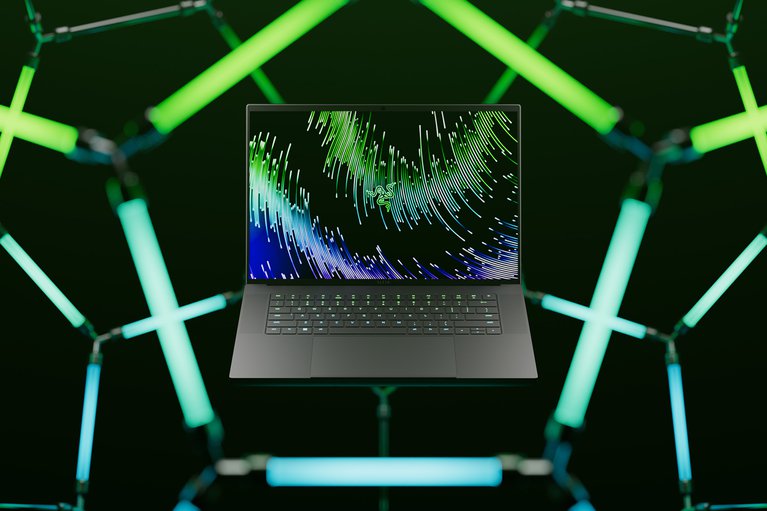
Or machines with specific use cases like being water resistant or usable in the north poll. Then you’ve got the machines that just want to get experimental like the $3500 Lenovo Yoga book 9i (though its Asus ZenBook competitor is less than half the price).
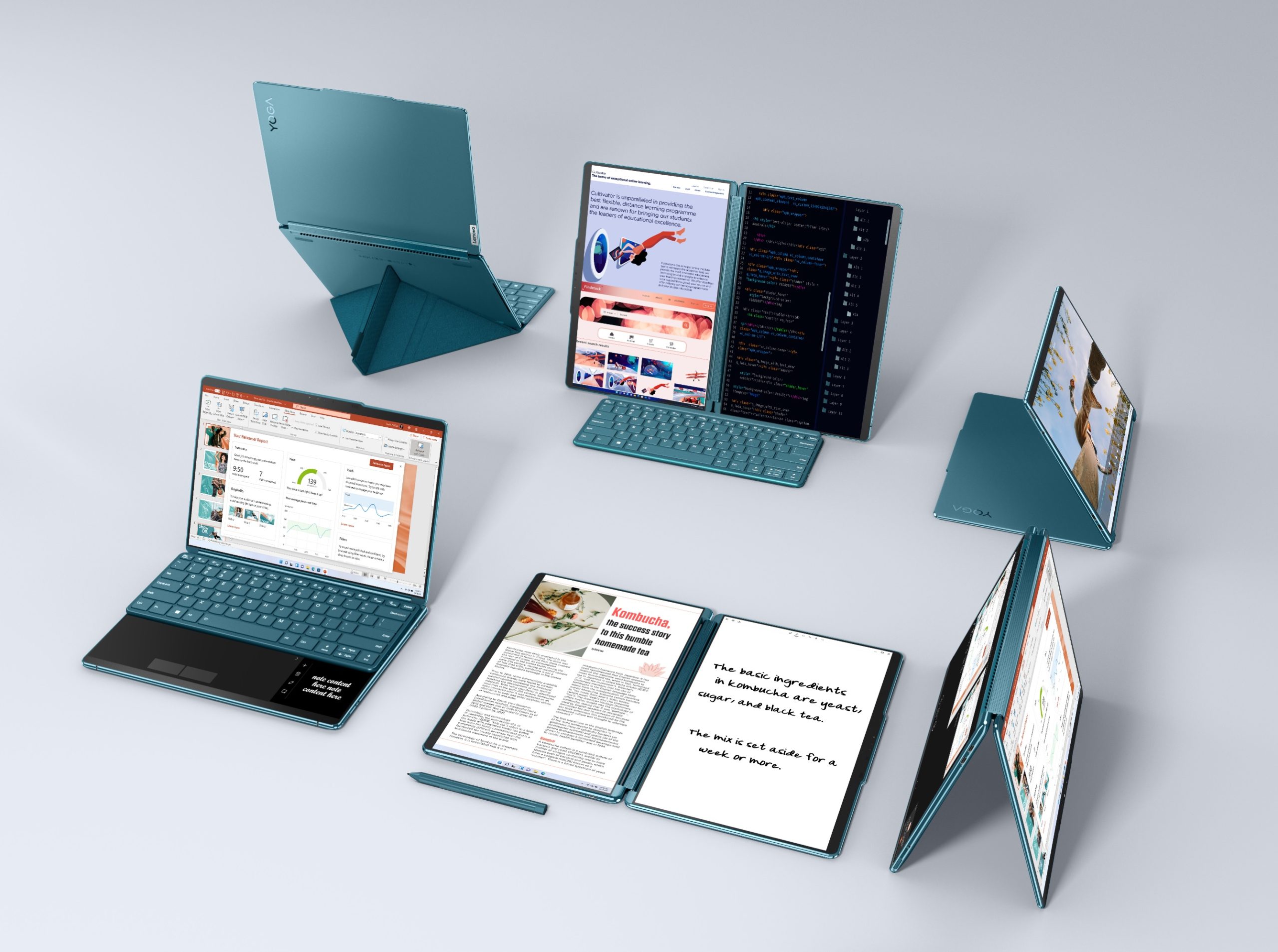
Something like Microsoft’s Surface Book and now the Surface Laptop Studio 2 sit right in the middle of that the Laptop Studio 2 being created to be both an Ezell for digital artists, but also a powerful, pro level machine that handles everything from gaming to coding to 3D rendering in a single day with no slow down. But even it can’t compare to machines you can configure to have up to 8TB of storage internally, or gaming machines with 2 built in displays, or tablet sized machines with more power than most machines twice it’s size and a specialized connection to support external GPUs. Add in machines with specialized docking ports for company mainframes and servers, and again, you start to get it ; these aren’t machines a lot of us need, but those who do need them need that specific feature or optimization at its very best. Do the drop in price and come to the second hand market? Yes, but this might be the one time I’ll tell you buying a newer, lower priced machinery be enough for you.

But that essentially does it for part 1 of our laptop buying guide. There’s a lot more to cover, especially when it comes to operating systems, buying second hand in zim, and maybe even a dive into specific sub categories like Macs, gaming PCs or Ultrabooks. For now though, we hope this helps you get started. If you think we missed some points or want us to focus on anything specific, do let us know in the comments or on social media. Catch you in part 2!
Related Stories:

Best Alternatives to Econet Smartbiz (now that it’s dead)
No more Smartbiz? These services may be for you.
Read More


About Author